

Export working Times
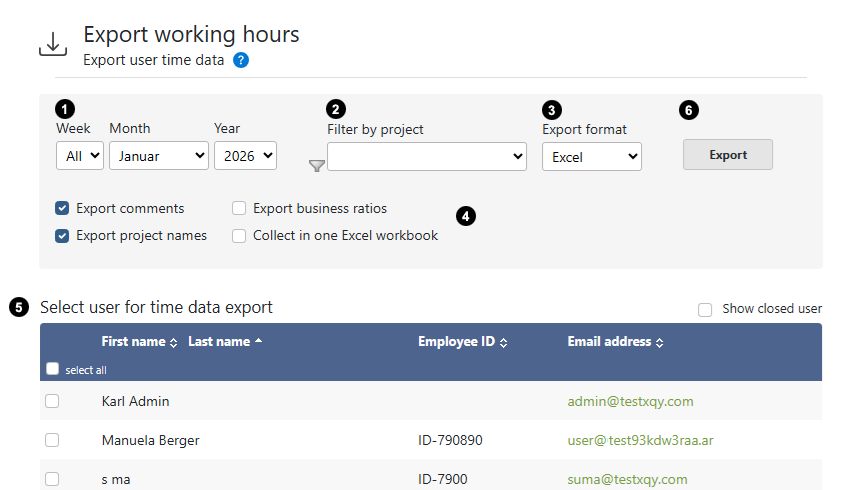
The menu item Export working hours is available to all users. Each user can export their own working times. Administrators and time sheet managers (depending on permissions) can export the working hours of other employees.
1
Select Time Period
Here you set the time period for exporting working times: Choose a week, month, and year for which you want to export your working hours. For weeks and months, you can select the entire period using All.
2
Filter by Project
You can limit the export to a specific project. Only the working times related to the selected project will be exported.
3
Export Format
Microsoft Excel Format:
Export in Microsoft Excel format: Depending on your selection, the working times will be exported to a single Excel sheet or an Excel workbook. If you export a whole year, an additional sheet for the annual working hours will be created. If you can't or don't want to use Microsoft Excel, the exported Excel format can also be opened with the freely available LibreOffice.
PDF Format:
Export in PDF format: The exported time data can be opened with Adobe Acrobat Reader. PDF format is great for printing.
CSV Format:
CSV format is very flexible and can be imported into many other programs and integrated into IT processes.
4
Other Options
Optionally, Comment, Custom Fields, and Project Names can be exported. For some export formats, there is an option to "collect" the exported data in one document, meaning storing them in a single document.
5
View for Admins and Timesheet managers
For admins and timesheet managers, a list of employees is displayed. Select the employees whose working hours you want to export. If you select multiple users at once, the working time data for all selected users will be bundled into a ZIP archive. Here you can find information about a free ZIP program.
6
Start Export
Click Export to start the export process.
 Back to Overview